
Overview
The Licence Manager is an intuitive, self-service tool designed to streamline how you handle your Workspace licencing. It provides you with control and clear visibility, simplifying licence management for both you and your Account Managers.
Currently, the Licence Manager applies only to online customers. Offline orders cannot be integrated into this tool.
Key Features
- Purchase new licences directly from the platform.
- You can easily view and manage your existing licences.
- You are able to set up and manage alerts related to your licences, such as top-up reminders.
- Gain access to a dashboard with key metrics and reports on your licence usage. This includes end-of-month reporting for licence additions.
- Live data on how efficiently your licences are being utilised.
Navigating the Interface
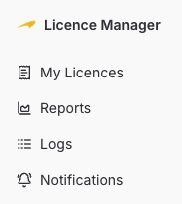
My Licences
Overview
The 'My Licences' section within the Licence Manager is where you gain full visibility and control over the type and number of licences available to your domain, allowing you to efficiently monitor usage, manage allocations, and ultimately optimise your Workspace resources.
Key Features
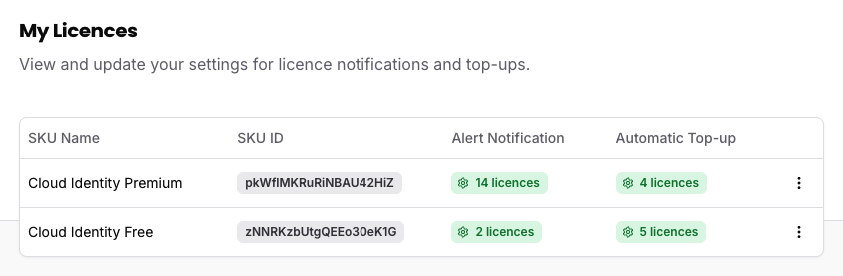
Within the 'My Licences' section of the Licence Manager, you have comprehensive control over your licence management. This includes the ability to manually add licences, alongside customising and managing your notification preferences. From here you can set up alerts to notify you when your licence usage approaches a designated threshold, enabling proactive resource management. Additionally, you can configure alerts for automatic top-up triggers, ensuring your licences are replenished smoothly and without interruption when specific usage levels are met.
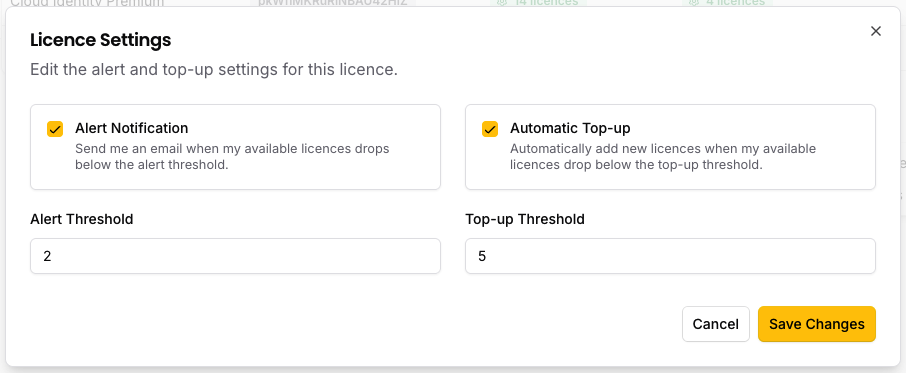
Getting Started
Managing Notifications and Auto Top-Ups
- Head to the Licence Manager Homepage
- On the left hand panel, select "My Licences"
- Click the 3 dot icon against the relevant SKU and select "settings"
- Click the required notification and top-up options, setting your desired threshold
- Press 'Save Changes'
You can also select 'Home' at anytime, and this will take you back to the 'My Licences' page.
Adding Licences Manually
You can add more licences at any time by following these steps:
- Locate the licence SKU you want to add licences to
- Click the three dots menu on the right side of the row
- Select "Add Licences" from the dropdown menu
- Enter the number of additional licences you wish to add
- Confirm your selection to complete the process

This manual process is useful when you need to quickly scale your licence count without waiting for automatic top-ups to trigger.
Reports
Overview
The "Reports" section of the Licence Manager is useful for gaining a deeper understanding of your Workspace licencing, moving beyond simple management to offer valuable insights. It features a comprehensive dashboard that provides key metrics and detailed reports on licence usage, enabling informed decision-making about your licencing strategy. A crucial benefit is the essential end-of-month reporting for licence additions, which streamlines the invoicing process.
Key Features
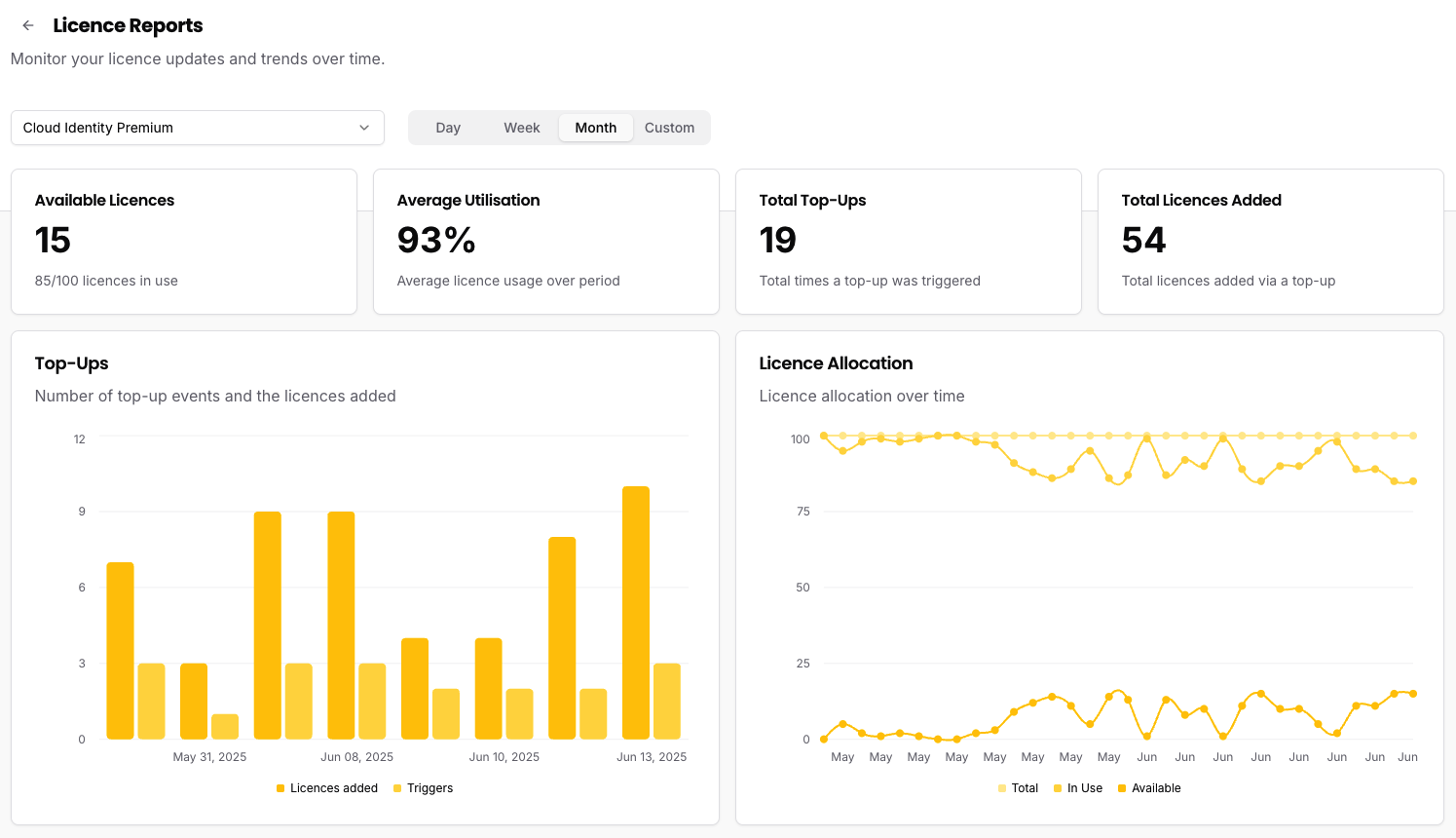
Within the "Reports" section of the Licence Manager, you gain access to a comprehensive dashboard displaying key metrics related to your licences. You can start by switching between SKU's using the dropdown at the top. You can then view detailed licence usage information by day, week, month and also custom date ranges to ensure you derive the information you want from the report.
Alongside useful graphs for quick insights, the report will tell you:
- Available Licences - How many licences you currently have left of this type
- Average Utilisation - The percentage of licences that were used in the set period
- Total Top-Ups - The amount of times the licences were topped up via the tool
- Total Licences Added - How many licences were added as a result of the top-ups
Getting Started
- Head to the Licence Manager Homepage
- On the left hand panel, select "Reports".
- From the dropdown menu, you are able to select the type of licence.
- You can switch between day, month, year and also select custom dates for the report to run.
Note: All metrics and data shown in reports are currently only collected from automatic licence additions.
Logs
Overview
The "Logs" section within the Licence Manager serves as a comprehensive audit trail for all activities related to your Workspace licencing. This section is crucial for maintaining transparency and providing detailed historical information.
Key Features
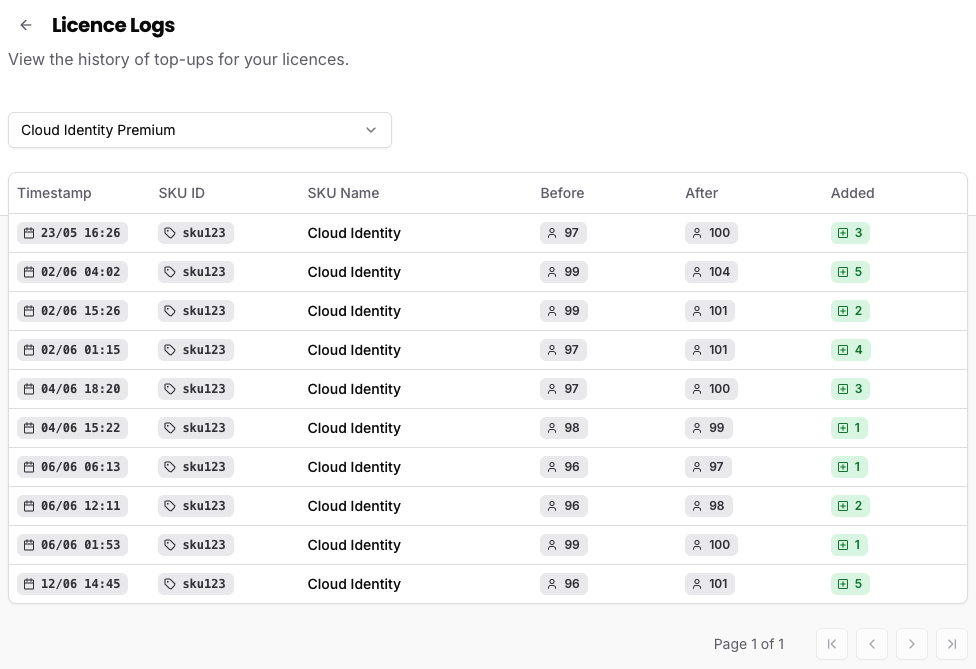
The logs allow for a timestamped review of licence history per licence type, which can be invaluable for troubleshooting, compliance, and understanding licence changes over time. By providing access to these records, the "Logs" section helps ensure accountability and provides a robust history of how licences have been managed within the platform.
Getting Started
- Head to the Licence Manager Homepage
- On the left hand panel, select "Logs".
- From the dropdown menu, you are able to select the type of licence.
Notifications
Overview
The "Notifications" page of the Licence Manager is designed to keep you informed and proactive regarding your Workspace licencing. Its primary benefit lies in providing timely and relevant alerts, ensuring you never miss important updates or actions related to your licences.
Key Features
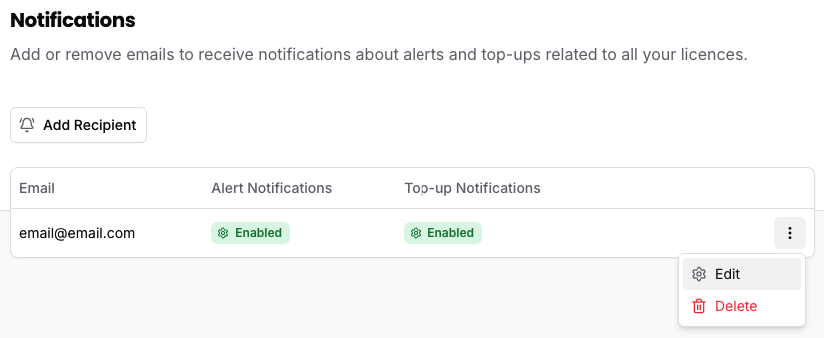
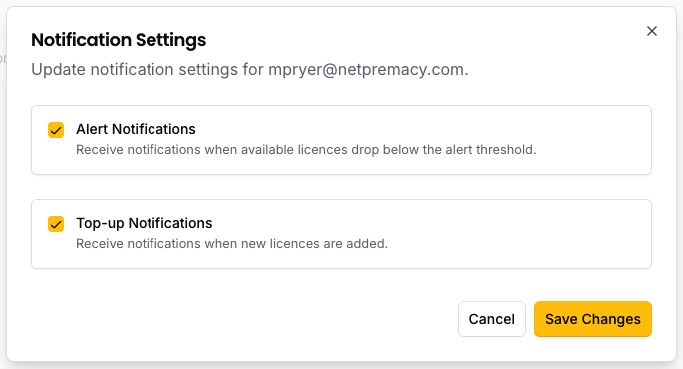
These notifications are important for preventing service interruptions and ensuring smooth licence management. They alert you to low licence counts, and confirm when automatic top-ups have added licences to maintain your preferred vacant seat threshold. Ultimately these notifications give you better visibility and more control over your resources.
Getting Started
- Head to the Licence Manager Homepage
- On the left hand panel, select "Notifications".
- By selecting the 3 dots & edit next to the email address, you are able to edit the type of notifications the user receives.
- Toggle the settings as required, and click 'Save Changes'